Uncategorized
 Tribes:Vengeance Infinite Spawn Tool
o, I have to run a T:V server at a service provider that’ll only let me use FTP to administer my T:V server. This is a problem, because it becomes difficult to restart the server using FTP only 🙂
So I pulled out the good old Borland C++ compiler and started coding.
“Hah”, I said after a day or two to the service provider. “Please install this executable.”
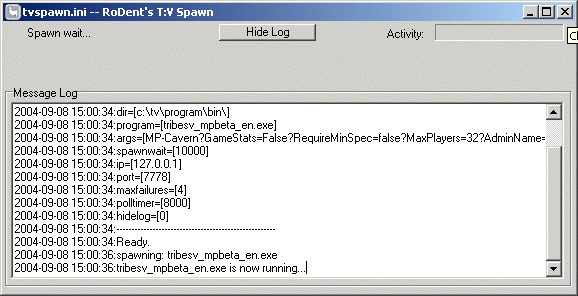
TVSpawn is similar to the ISpawn of T1, and T2 except it’s a bit more clever. It will restart the Tribes server, and itsself (TVSpawn) if it detects a change in it’s “.ini” file. This means that you can restart a T:V server running remotely by simply uploading a new .ini file with a new date/timestamp.
TVSpawn will also apply the settings inside the new .ini file upon restart, allowing you to change the server’s startup commandline on-the-fly. That’s the neat part.
The mediocre part is that it basically does the normal stuff that T1/T2’s ISpawn did, which is monitoring the server on it’s query port (typically port 7778) to see if it’s still responding. If the polls to port 7778 fails a predetermined number of times (maxfailures in the .ini) it will assume that the server died and respawn it.
The program and and an example ini file is available here: https://rodent.za.net/files/tribes/tvspawn/
Installation:
- Drop the .ini, and .exe into our tvprogrambin directory.
- Edit the .ini and fix all the paths/settings to your liking.
- Run it.
What it does:
- Uses a .ini to read it’s configuration
- Will restart the T:V server, and itsself if the configuration file changes (date,size, etc…)
- Polls the T:V server on it’s GaySpy port, to ensure it’s alive.
- Restarts the T:V server if it stops responding to polls (maximum failures configurable in the .ini)
- Restart the T:V server if it exits
- Applies a “startup delay” (spawnwait in .ini) whenever the process is restarted to prevent insane respawning.
- Has mostly all options configurable in the .ini file
Hints:
- tvspawn.exe will take a single commandline argument. The name of the .ini file. Thus, if you want to run multiple servers, with different configurations, run “tvspawn.exe myserver.ini” to have it use a different .ini file. By default (if no commandline arguments are specified) it will look for tvspawn.ini in the current directory.
- Set “hidelog=1” in the .ini file to have a “slim” version, minus the log window started up. You can always review the log by clicking on the “Show Log” button.
To Do:
- Make it a configurable, and installable service, with a service name for each .ini
- Get an icon that isn’t a Llama.
- Include a small socket server that’ll accept remote commands, such as “reset”, “status”, and “booyah!”.
Mail me at rodent at rodent dot za dot net, if you have tips, suggestions etc…
ProASM releases alternative Sentech MyWireless Dialler
ProAsm has created a windows dialler application for the Sentech Modem, that replaces the default Sentech dialler, and displays signal strength with a higher frequency, and has some neat other features. http://www.unrealza.co.za/proasm/mywireless.html
IPWireless Win32 driver – debugging and reversing
A series of tweaks for the Win32 USB drivers of the IPWireless modem, and some more tweaks for the “Wireless Broadband Dialler”
Getting rid of the debug overhead in the drivers:
The USB drivers log a lot of useless information about the USB protocol used to communicate with the modem, using the win32 DbgPrint kernel function-call. This causes some serious overhead, and can amount to quite a bit of extra CPU cycles when running at high speeds. This “spam” is quite obvious when you run a tool such as DebugView. (Try it, you’ll note the spam, and remember to ‘Capture Kernel Events (Ctrl+K)’) In addition the kernel has to buffer any DbgPrint data in an internal buffer until it overflows, or an application such as DebugView reads it off the stack. This incurs even more ring 0 overhead on systems using the USB driver.
The DbgPrint spam is controlled via a registry entry in the ipw_*.inf files… It’s easier, to just find the keys, after installation and change the debug flags, than reinstalling the drivers with modified .inf files.
By disabling the debug information and the extra overhead when talking to the USB device, I’ve managed to shave around 5-8ms off my ping times. (A completely subjective measurement) [YMMV] <— Under profiling conditions, with a kernel debugger the call overhead per USB poll dropped from 230 cycles to 89 cycles which is a considerable saving in CPU cycles wasted. (This was an objective measurement).
I find it quite insane that a company such as MCCI can distribute drivers for production release with full debugging turned on.
Hopefully, once I patch the drivers this may drop to around 3-4% levels since there is still considerable overhead in checking the debug flags.
In the meantime, to at least reduce the syscall overhead when using the drivers, the following can be done:
_Warning, the StandardDisclaimer applies when attempting any of the following:_
Disabling the debug information (Win2000,WinXP):
*Fire up regedit.exe
*Do a search for the string “~MCCIUSB_~DebugLevel” by pressing Ctrl+F (enter it without the quotes)
*Once you’ve found the value (the default will be 0xffffffff), change it by double clicking on it.
*Change the value to 0 (decimal, or hexadicimal)
*Click ok.
*Press F3 to find the next occurrence of “~MCCIUSB_~DebugLevel” and keep on changing the values to 0.
*Once there are no more entries found, reboot your PC.
Getting the dialer to print more information
The dialler application, has a few registry entries to show more “debug” information in it’s window. This kind of information is actually useful, and has very little overhead, since the debug info is only printed during the connection establishment phase. If you’re like me and want to see what your modem is doing, then turn on the debugging for the dialler as described below.
To turn on full debugging for the dialler application:
*Fire up regedit.exe
*Navigate to HKEY_LOCAL_MACHINESOFTWAREIPWireless Inc.IPWireless PC Software
*Right click on “IPWireless PC Software” in the tree, and on the popup menu select New->Key
*Type in “Debug” (without the quotes) and hit enter, to create a new Key.
*Now, left click on HKEY_LOCAL_MACHINESOFTWAREIPWireless Inc.IPWireless PC SoftwareDebug in the tree.
__theloop__
*Right click in the blank area (NOT in the tree) and click on New->String Value
*Enter ATCMD, and hit enter
*Double click the ATCMD entry and type in “Enable” (without the quotes)
*Repeat starting at __theloop__ for the following values:
**ATRES
**ATRESP
**~RasTrace
Now, when you use the “Wireless Broadband Modem Dialler” application, some more debugging information will be shown in the “ISP” window.
Getting the dialler to retry more than 5 times after disconnect:
The “Wireless Broadband Modem Dialler” has an option on the “ISP” tab to “Reconnect if line dropped”
When you turn this checkbox on, the dialler will retry for a maximum amount of 5 times to reconnect to the Sentech network.
This is pretty useless, since we all know: _When it goes down, it goes down for a while_
To increase the number of attempts that the dialler will use when attempting to redial do the following:
*Fire up regedit.exe
*Navigate to HKEY_LOCAL_MACHINESOFTWAREIPWireless Inc.IPWireless PC Software
*Find the entry named RECONNECT_ATTEMPTS on the right-hand side.
*Double click the RECONNECT_ATTEMPTS entry, and change the value to 10000
*This will cause the dialler to retry 65536 times when the line gets disconnected.
An interesting way to increase MyWireless signal strength
Lots of MyWireless users have reported that cutting a hole about 4cm from the back of a Pringles can, and sticking the modem’s antenna into it has increased their gain in signal from ~5% to 15%
This is very likely due to the fact that the PringlesCan acts as a basic “waveguide” which causes the modem’s output signal to be more directional than the standard omnidirectional antenna.
Simply cut a hole in a Pringles Can, and move your modem around towards the direction where it gains the most signal.
Of course, the rolls royce of CanTennae is the 750g Frisco coffee tin, with a PigTail.